A guest network is a separate WiFi network for guests. It lets friends, family, or other visitors use the internet without sharing your main WiFi password.
You can set up a guest network in the eero app, which is used to manage your eero network, including network settings, connected devices, and guest access.
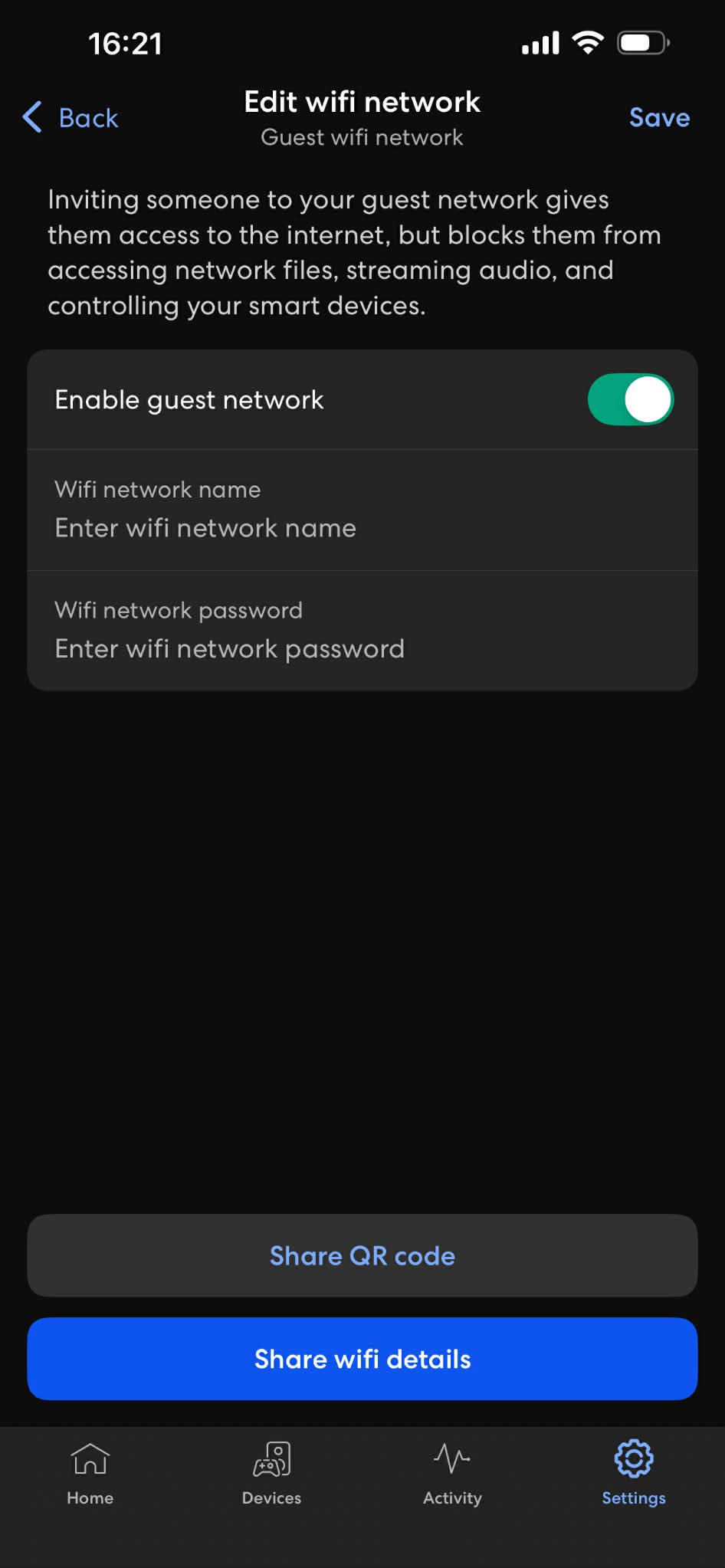
How to create a guest network
- Open the eero app.
- Go to Settings.
- Select Guest Network.
- Turn on the guest network.
- Choose a name for the guest network.
- Choose a password.
- Save your changes.
Guests can then connect using the guest network name and password you selected.
Why use a guest network?
A guest network is useful when you want to:
- give guests internet access
- avoid sharing your main WiFi password
- keep guest devices separate from your main home network
- turn guest access off when it is no longer needed
How do I change the guest network name or password?
- Open the eero app.
- Go to Settings.
- Select Guest Network.
- Change the name or password.
- Tap Save.
How do I turn off the guest network?
- Open the eero app.
- Go to Settings.
- Select Guest Network.
- Turn off the guest network.
Guests will no longer be able to connect to the guest network.
If the guest network is not working
Try these steps:
- Make sure the guest network is turned on in the eero app.
- Check that the guest is selecting the correct WiFi name.
- Re-enter the password.
- Try changing the password and connecting again.
- Ask the guest to select Forget Network on their phone or computer, then reconnect.
- Restart the eero devices if the issue continues.